 Mingl
MinglSet up Mingl in two minutes.
Everything you need for your first event: your code, personas, the lock screen and Apple Watch.
1. Install Mingl
Get Mingl for iPhone (iOS 17 or later) or Android (7 or later).
 Coming soon to Google Play
2. Create your code
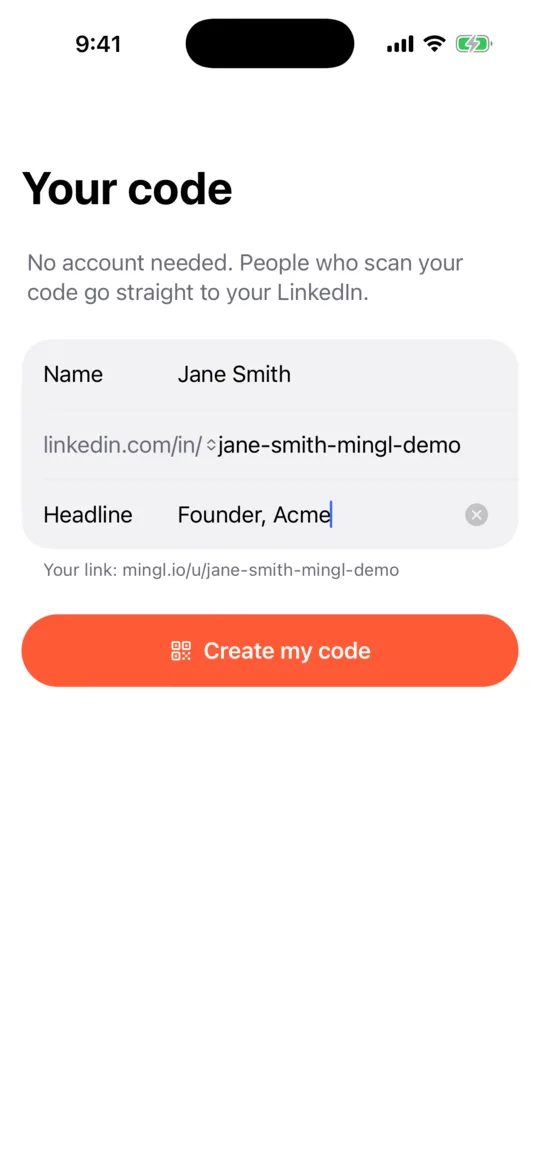
Add your name and LinkedIn
Type just your LinkedIn username, the part after linkedin.com/in/. Pasting your whole profile link works too. You’ll find it on LinkedIn under your profile’s Contact info.
Add a headline
Something short, like “Founder, Acme”. It shows under your name when you present your code.
Tap Create my code
Your link becomes mingl.io/u/your-username. There’s no account and no email.
3. Add personas (optional)
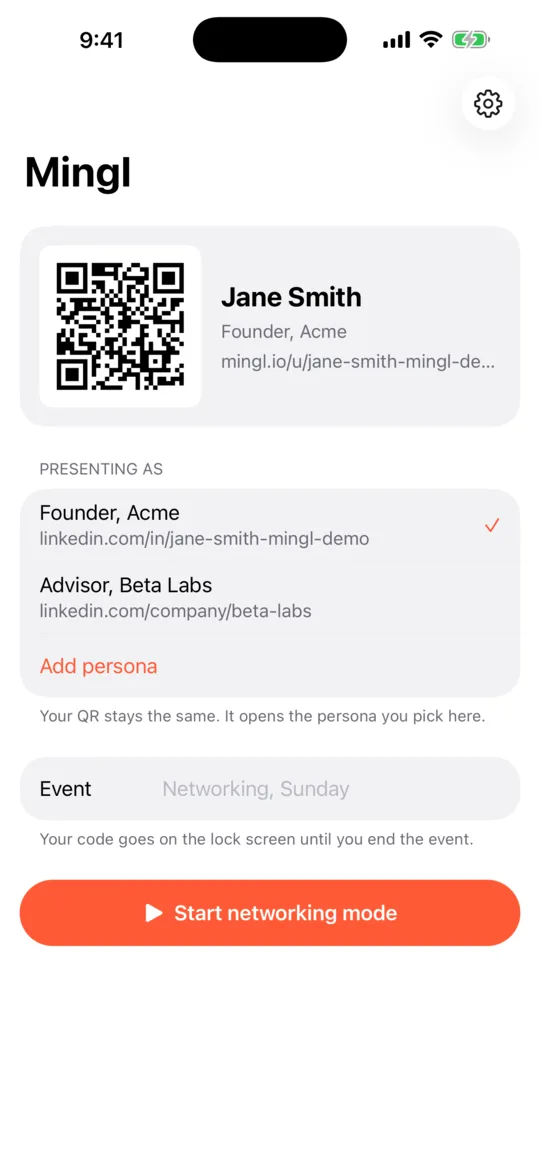
Wear more than one hat? Add a persona for each startup or role. You keep one QR code; it opens whichever persona you pick.
Tap Add persona on the home screen
Give it a name, headline and LinkedIn link.
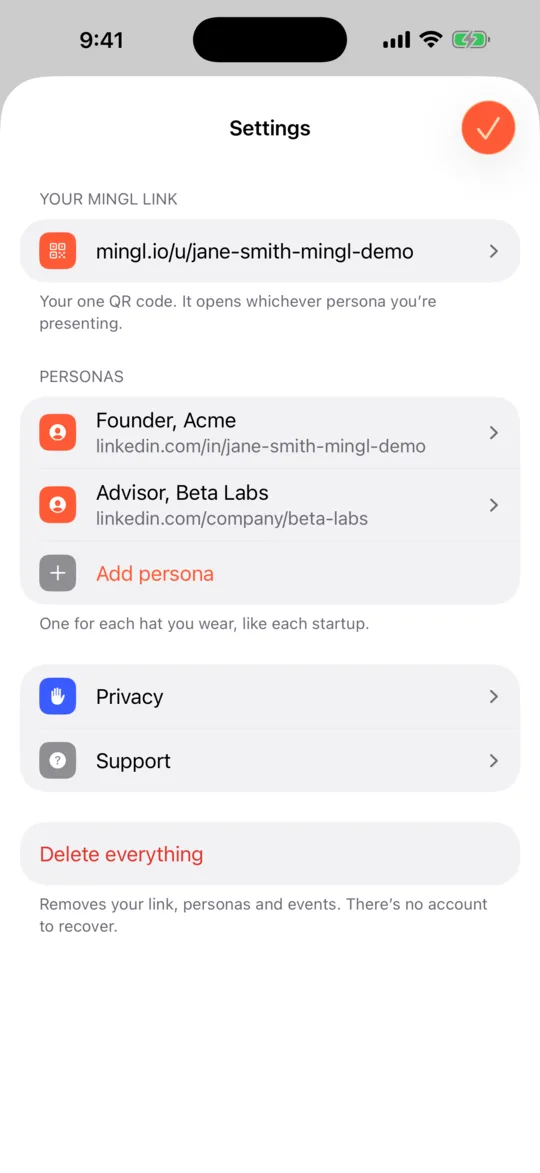
Linking a company page?
Tap linkedin.com/in/ to switch it to linkedin.com/company/, or just paste the company page’s link.
Pick who you are tonight
Tap a persona under Presenting as. Your code switches to it straight away.
4. At the event
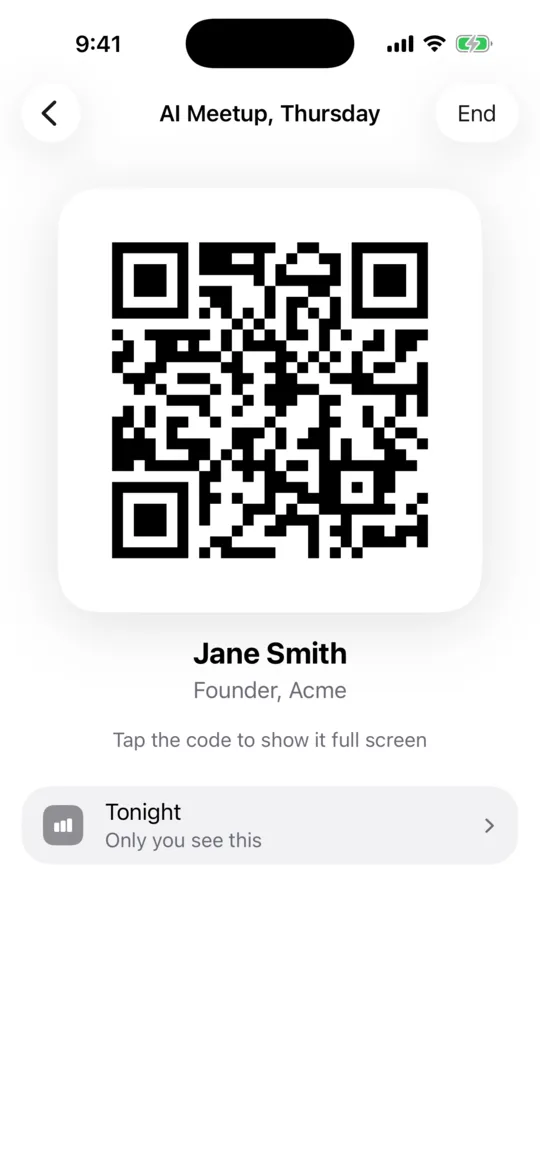
Tap Start networking mode
Give the event a name if you like, such as “AI Meetup, Thursday”.
Allow it on the lock screen the first time
iPhone asks once whether Mingl can show Live Activities; Android asks whether Mingl can send notifications. Tap Allow so your code appears on the lock screen. On Android, pull the Mingl notification down to show the code full size.
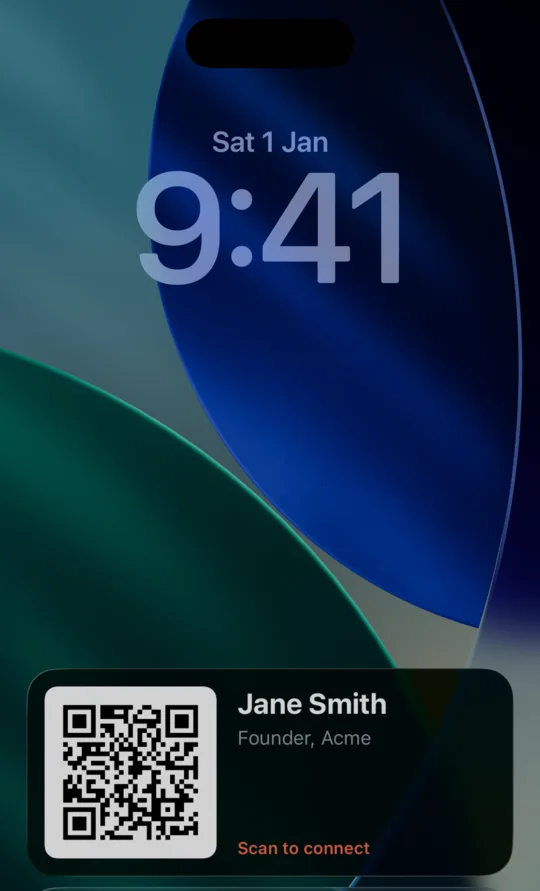
Lock your phone
Your code stays on the lock screen. When someone asks, wake your phone and let them scan. No unlocking, no app switching.
Tap End when you leave
Your code comes off the lock screen. Open Tonight any time to see how many people you met. Only you see that number.
5. Show your code full screen
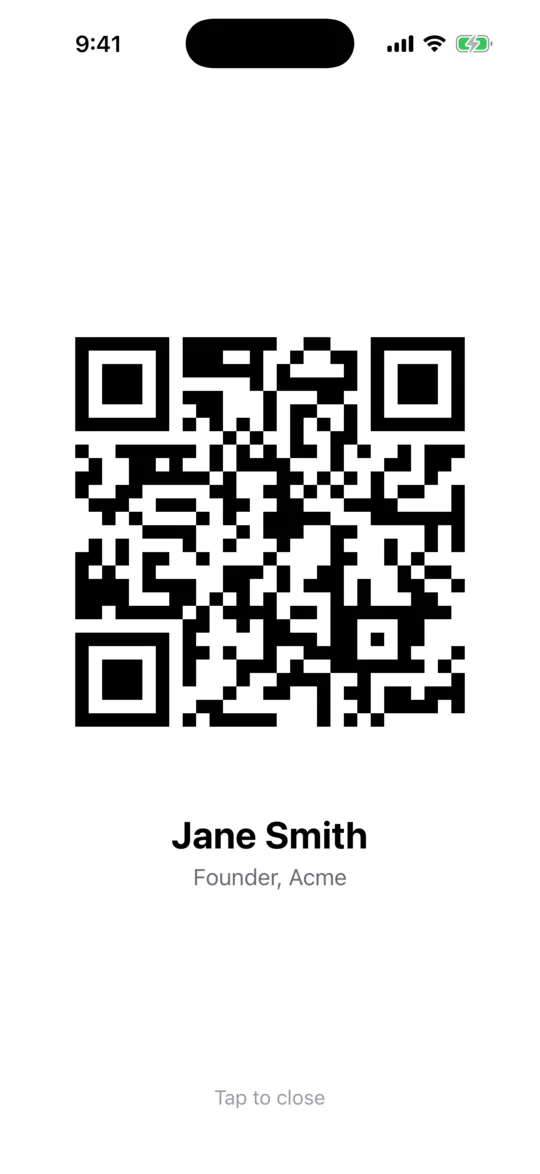
In networking mode, tap the code. It fills the screen at full brightness and your phone stays awake until you tap again. Handy in a dim venue or for a group.
6. Apple Watch
Mingl shows your code full screen on your wrist. It needs watchOS 10 or later.
Install the watch app
On your iPhone, open the Watch app, go to My Watch, scroll to Mingl and tap Install. If your watch installs apps automatically, it may already be there.
Open Mingl on your iPhone once
Your code is sent to your watch and kept there, so it works even when your phone is in your pocket. Switch persona on your iPhone and the watch follows.
Keep it on screen for the night
By default your watch goes back to the clock after a couple of minutes. On your iPhone, open the Watch app and go to General → Return to Clock → Mingl, then choose After 1 hour.
7. Add the watch complication
A complication is a small button on your watch face. The Mingl one opens your code in a single tap, so you never have to hunt for the app.
On your watch
Touch and hold your watch face
Then tap Edit.
Swipe left to Complications
Swipe until you see the complication slots highlighted.
Tap a slot and choose Mingl
Turn the Digital Crown to Mingl, then pick Show my code. It comes as a circle, corner, rectangle or a line of text, to suit any face.
Press the Digital Crown to save
Press it twice to go back to your face. Tap the complication to bring up your code.
Or from your iPhone
Open the Watch app, tap your current face under My Faces, then under Complications tap a slot and choose Mingl.
Troubleshooting
My code isn’t on the lock screen
Check that Live Activities are on: Settings → Mingl → Live Activities. Then open Mingl; if you’re in networking mode, tap Restart networking mode. iPhone ends Live Activities after about 8 hours.
On Android, check Settings → Apps → Mingl → Notifications is on, and that your lock screen shows notifications (Settings → Notifications → Notifications on lock screen). If you swiped the notification away, tap Restart networking mode in Mingl.
The watch says “Open Mingl on your iPhone to set up your code”
Keep Mingl open on your iPhone for a few seconds with your watch nearby. The code is sent the first time both are awake, then it stays on the watch.
I can’t find Mingl when adding a complication
Make sure the Mingl watch app is installed (step 6). Some faces only have certain slot shapes. Try a face with a circle or corner slot, such as Modular or Infograph.
Someone scanned but nothing happened
Their camera should show a link to mingl.io. Tapping it opens your LinkedIn, in the LinkedIn app if they have it. Turn your screen brightness up, or use the full-screen code.
I got a new phone
There’s no account, so your link lives on your old phone. Email hello@mingl.io and we’ll help you move it.
Still stuck? Email hello@mingl.io.